In my years as a PPC consultant, clients were always looking for tips, hacks, and tools to help them save money. Lucky for me, I had a trick up my sleeve that would almost always deliver budget-saving results: ad scheduling.
Ad scheduling is one of my personal favorite underrated moves to make when maximizing a campaign’s performance. While it sounds limiting to set your campaign’s ads to show only at certain times, it actually makes the most sense, as most businesses have certain times of the day or week where their potential customers are most active online.
In this article, I’m going to uncover the money-saving magic, as well as the finer details, of ad scheduling. I’ll talk about what ad scheduling is and how it cuts costs while boosting conversion rates. Plus, I’ll walk through the steps for how to set up ad scheduling in Google Ads, Microsoft Ads, and Meta Ads.
Contents
- What is ad scheduling?
- Ad scheduling benefits
- How to set up ad scheduling in:
What is ad scheduling?
By default, all ad campaigns across platforms are due to run 24/7. Ad scheduling is the practice of limiting your campaigns to run only on certain days of the week and hours of the day. This way, you can ensure your ads are only showing during specific days/times that you know you’ll get the highest return on ad spend.
Ad scheduling saves you money by only showing your ads on the days and times they perform best.
For example, I can look at my data to identify that Mondays between 9 a.m. and 5 p.m. are my best converting times. But on the opposite end, I spend on clicks on Sundays at 3 a.m. that are not converting. Therefore, I may want to adjust my ads to only run on weekdays from 9 a.m.-5 p.m., and not on weekends when I know this will be wasted spend.
If you’ve been in the PPC game a long time, you may also know ad scheduling by its old name from many years ago, when it was called “dayparting.”
💡 Want to learn even more money-saving tips? Found out where you can save spend with our Free Google Ads Grader!
Why use ad scheduling?
Ad scheduling in Google Ads is assigned at the campaign level for any campaign type. This even includes automated campaigns, like Smart or PMax campaigns, which is a huge advantage. Why? While these automated campaigns do the heavy lifting for you, you’re not able to control much since they run on their own via Google’s algorithm. With ad scheduling, you can still regain at least some control over the campaign’s behavior. In fact, some campaigns, like PMax, may prompt you to assign a schedule in the setup process.
Additionally, being able to set this solely at the campaign level, regardless of campaign type, will help unify your ad groups and make things easier to manage at a high level.
Plus, even if you want to run ads 24/7, you can still leverage ad scheduling through bid adjustments. Both Google and Microsoft Ads allow for this. You can use this feature to pay more or less per click during specific hours on certain days, depending on how you’d expect to perform.
So, one workaround would be to set up an ad schedule that would still be inclusive of all hours and days. Then, add on schedule sets of what days or hours you’d want to bid up or down on to manage those separately. Or, even if you still wanted to leverage ad schedules to stop running 24/7 you can still apply bid adjustments on a more restrictive ad schedule. However, with any bid adjustment, they will only be taken into account if the campaign is on a manual bid strategy.
So, though the requirement is to have a manual bidding strategy to try out this loophole, it’s truly not one size fits all, and there are opportunities for bid adjustments for every account type!
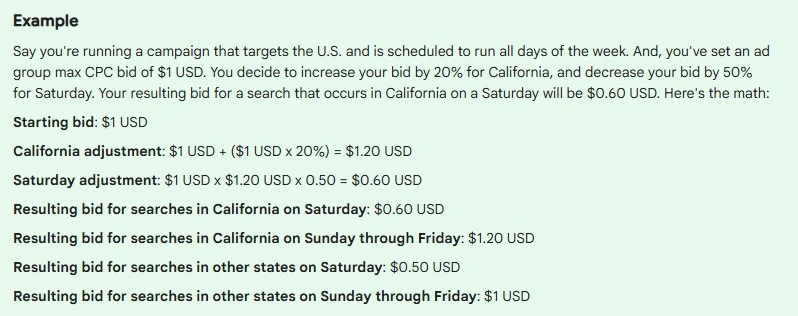
An example of an ad schedule bid adjustment in play with a campaign’s location targeting.
How to set up ad scheduling in Google Ads
Before you set up scheduling in Google Ads, there are three things about time zones you need to know:
- Google ad schedules default to the time zone your account is set to.
- Once you set up your Google account, the time zone you set cannot be changed later on.
- You can only choose one time zone.
This means that if you’re running Google ads in multiple time zones, you’ll need to stretch your ad schedule to cover both zones. So if you want your ad to show on both the east and west coast from 1-4 p.m. in both time zones, you’ll need to do the math and set your ad schedule for 1 p.m.-7 p.m. This isn’t ideal if you don’t want to run past 4 p.m. on the East Coast. This means that, in some cases with Google ad scheduling, wasted spend is unavoidable. But if you do the math, you can mitigate this as much as possible, and still see a return that’s well worth it.
One possible workaround would be to create separate campaigns and adjust those ad schedules zones accordingly, but this account structure gets hairy, and you’ll still need to do the math.
Now that you have that in mind, here are the steps to set up ad scheduling in Google Ads.
1. View your historical data
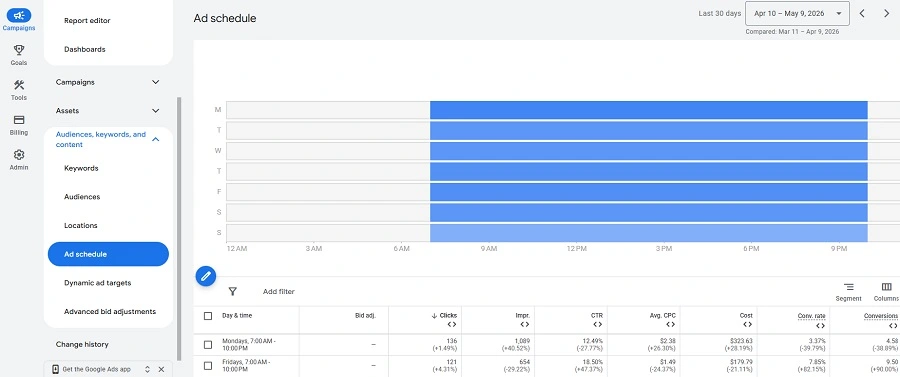
The key initial step to setting up a strong ad schedule in Google Ads is to analyze your historical data. You can do this by navigating to “where and when ads showed” under the reports section of the platform, or go to “ad schedules” under the audiences, keywords, and content section.
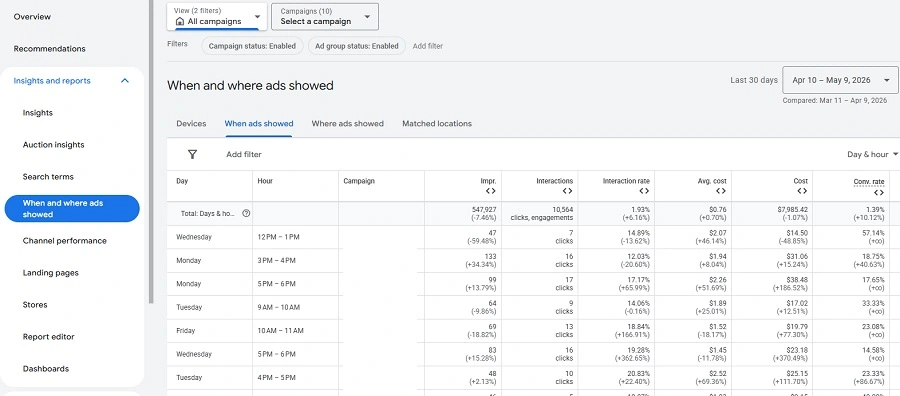
Either way, Google Ads will show you a view that includes a few different insights, like:
- Ad schedule: Where you click into to actually set up or adjust a new or current ad schedule assigned to your selected campaign.
- Day and hour: A combination of data with both information on best/least performing days and times together.
2. Consider additional scheduling factors
Aside from using data to see what historically works, you also need to take into account other factors that might not be accounted for in the data.
For example, if you know your business is only open on weekends or vice versa, you can adjust your ad schedule accordingly.
3. Select your schedule
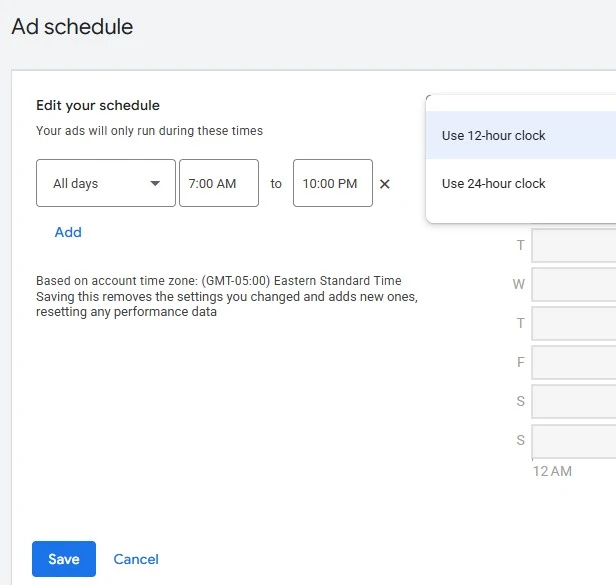
Once you identify what days and times you want to schedule your ad, you can navigate over to the ad schedule subsection to set it up. Click the blue edit pencil, and Google will provide a drop-down with any and all available options for days and hours.
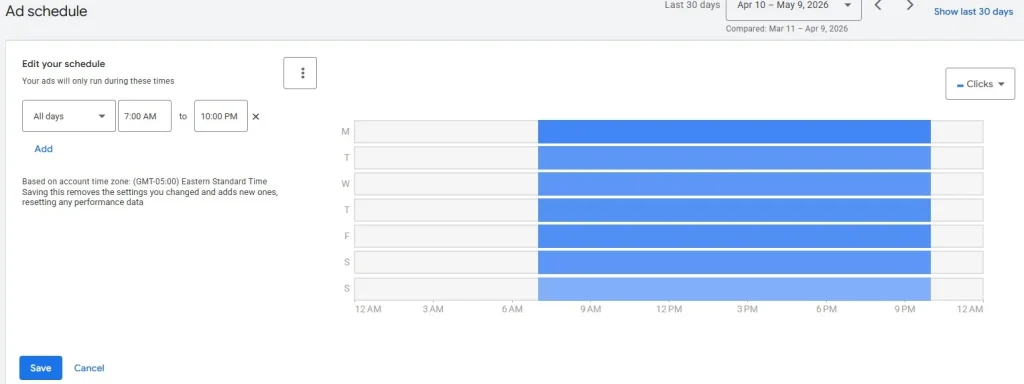
With this, you can even take it a step further and break up your ad schedule. You could set ads to run in the morning, take a pause during lunch hour, then enable them again in the afternoon. I encourage you to play around with different combinations to see what options you have and what you think would work best for your business.
⚡ For more cost-saving Google Ads tips, download our free guide to 6 easy ways to save money on Google Ads now!
How to set up Microsoft ad scheduling
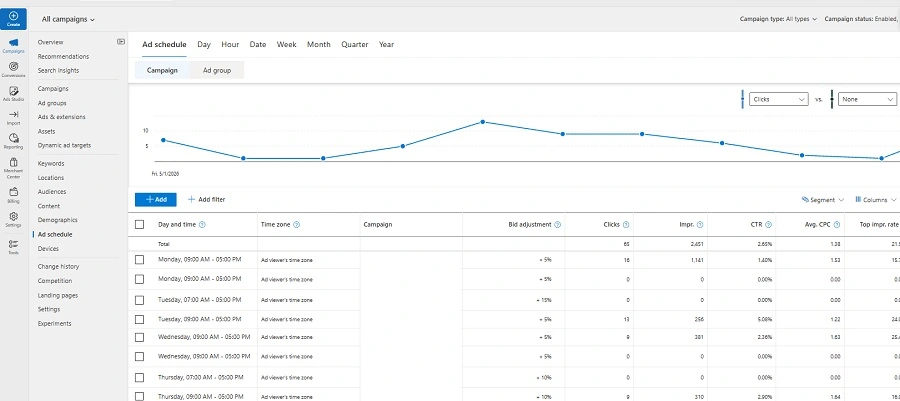
As with Google Ads, Microsoft Ads also allows you to apply an ad schedule to any campaign type at the campaign level. But overall, Microsoft gives us more flexibility with ad scheduling. How? Not only does it allow us to set at the campaign level, but it can also be set at the ad group level.
Another major advantage of Microsoft Ads schedules is that your ad schedule dynamically adjusts to the time zone of the viewer. That’s right, while it may take more finesse to incorporate all time zones into your scheduling plan on Google Ads, over on Microsoft, the platform does the heavy lifting.
One thing to note here is that if you’re leveraging Microsoft Import to copy your Google Ads components over to Microsoft, then you’ll quickly find that you’ll want to manually manage your ad schedules between platforms since you’ll most likely be setting them up differently.
Microsoft also has two different spots where you can create and adjust ad schedules. The first being the campaign level settings, and the second being the actual ad schedule section on the left-hand panel.
Once there, the setup is essentially similar to Google Ads, where you can layer and select individual or groups of days/times that you prefer to run. Just like we talked about with Google Ads, you may want to hop into the Ad Schedule section for Microsoft and evaluate the day and hour data sections.
How to set up ad scheduling in Meta Ads
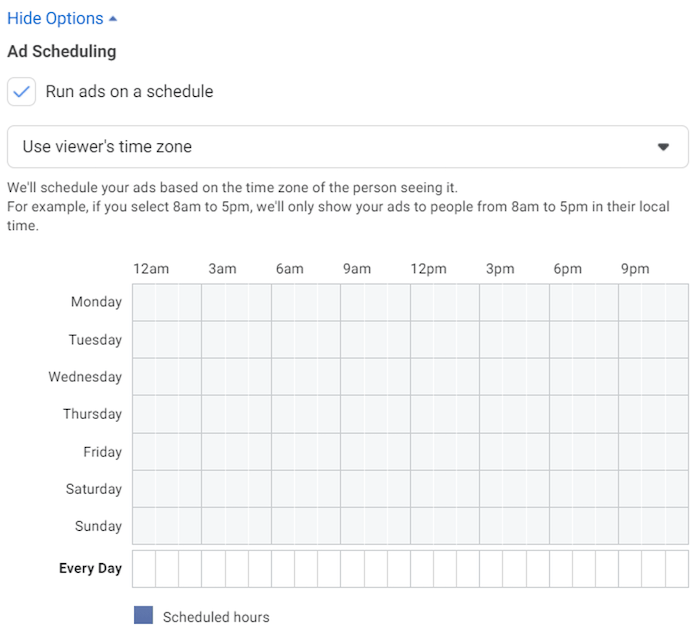
Not to be confused with Facebook Ad Set start and end dates, ad scheduling on Meta Ads shares similar spend-restricting qualities with Google and Microsoft. However, it’s only an available option when leveraging a lifetime budget instead of a daily budget.
Once you’re in a Meta campaign’s ad set that’s leveraging a lifetime budget, simply click into the “Show More Options” portion of the Budgets & Schedule section of the ad set editor.
From there, you’ll be able to select what days or times you’d like to show, just like in Google and Microsoft. Since Facebook can show to such large audiences, this is a great tool to ensure you always show at the right time: when it’s worth your money!
Save time and money with ad scheduling for your small business
On top of saving money, ad scheduling can be incorporated into your digital marketing strategy according to your business’s unique needs. There’s a place for ad scheduling for every small business, whether you are active on one or all of these three platforms, or want to continue running 24/7 while leveraging bid adjustments. Just keep the important details mentioned above in mind so you can get the highest return on ad spend. For more ways to maximize your paid campaigns across platforms, see how our solutions can help!
About the WordStream Blog
We've been a trusted source of data, news, and strategy for over 15 years. All of our content is written and reviewed by real people: a dedicated team of professionals with decades of combined experience in marketing and advertising for businesses of all sizes.


Add us as a preferred source on Google
Are you wasting money in Google Ads?

Meet The Author
Susie Marino
Susie is the Senior Content Marketing Specialist for WordStream and LocaliQ, where she uses her experience as a PPC consultant to share tips, tactics, and best practices in the ever-evolving marketing and advertising space. Susie’s work has been featured in publications such as Search Engine Land, MediaPost, Social Media Today, and others. Outside of work, Susie loves to get outside for some snowboarding or (once the cold weather melts away) hiking!
Recommended for you