Managing a Google Ads account is about so much more than optimizing your keywords or picking the right bid strategy. An increasingly important part of ads management is keeping control of Google’s automated features so they don’t inadvertently derail your strategy.
There are a variety of “default” options in Google Ads, buried deep within menus that you probably never check. They can shift control, change how your ads appear, or just make your life unnecessarily difficult.
If you’ve ever wondered how to get Google sales reps to stop emailing your client, or how to turn off automatically created assets once and for all, this article is for you!
In this guide, we’re covering six hidden settings every Google Ads practitioner should check right now to ensure your campaigns stay fully under your control and aligned with your business goals.
6 hidden Google Ads account settings to check:
- Auto-apply Recommendations settings
- Personalized recommendations settings
- Notifications settings
- Account-level automated assets settings
- Content suitability settings
- Billing threshold settings
1. Auto-apply Recommendations settings
You may know that Google’s built-in Recommendations are generally designed to get you to use more Google Ads features, like Performance Max, broad match keywords, or Smart Bidding. If you’re not careful, Google can implement these Recommendations without your explicit permission through a feature called Auto-apply recommendations, or AAR.
While Recommendations aren’t inherently good or bad—they’re just recommendations, which you can accept or dismiss—it is generally accepted that it’s a bad idea to let Google do whatever it wants to your Google Ads campaigns.
For example, I have seen a client’s perfectly crafted Exact Match keyword strategy completely upended when an auto-apply recommendation changed all of their keywords to Broad Match. I have seen another advertiser’s spend start skyrocketing when an auto-apply recommendation adjusted their bid strategy.
Don’t become a cautionary tale. You want auto-apply recommendations turned off.
To check your auto-apply settings, go to Admin > Account settings > Auto-apply and make sure it says “Auto-apply is turned off,” as in this screenshot.
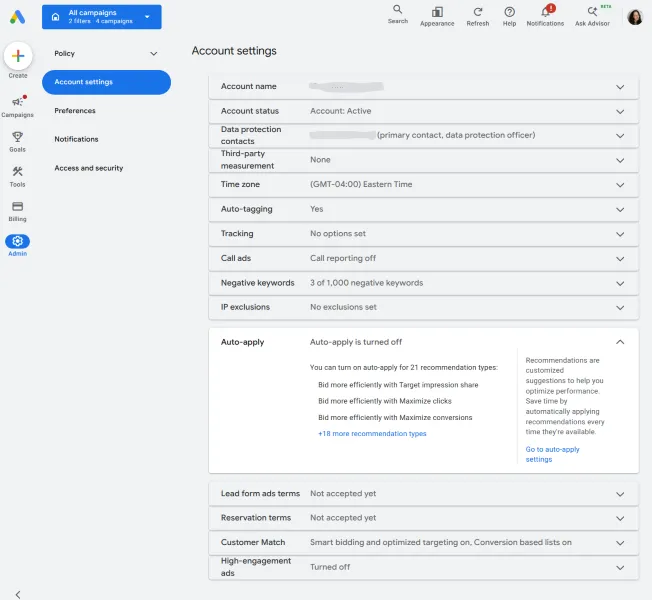
If you still have some turned on, you can click the link to “Go to auto-apply settings” to turn them off.
🤓 Need a quick-but-thorough catch-up on Smart Bidding? Download The Fool-Proof Guide to Smart Bidding (+How to Get Started Fast)
2. Personalized recommendations settings
There are two settings buried even deeper in your admin settings that may be helpful if you’d like to receive fewer “personalized” emails from Google. This will put you (and your client) at much lower risk of implementing something by accident.
First are the “Data sharing” settings. Turning this off means that you don’t give Google access to your Google Ads account data. Of course, somewhere in the backend Google still knows what’s going on in your account, but those automated Recommendation emails? They’ll become much more innocuous, since they can no longer contain your campaign names or your specific campaign data.
To turn off personalized recommendations, go to Admin > Preferences > Data sharing > Recommendations for your business and make sure it says “Off,” as in this screenshot.
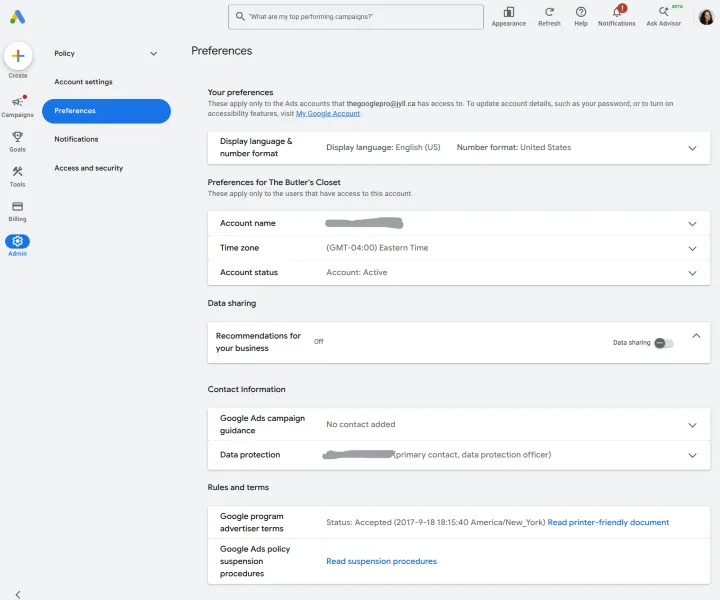
If not, you’ll need to move that “Data sharing” toggle off.
3. Notifications settings
To make opting out of data sharing even more powerful, you can opt out of receiving “Google Ads expert guidance” (read: automated emails from Google sales representatives), “Customized help & Performance suggestions” (read: usually not actually helpful), and more in your notifications settings.
Go to Admin > Notifications > Notification settings to decide what you want to receive, or not receive. Depending on your access level, you may also be able to turn off these notifications for your client, which can be especially helpful so that new Google sales representatives aren’t telling them that “your account is not optimized” or “you don’t have enough keywords.”
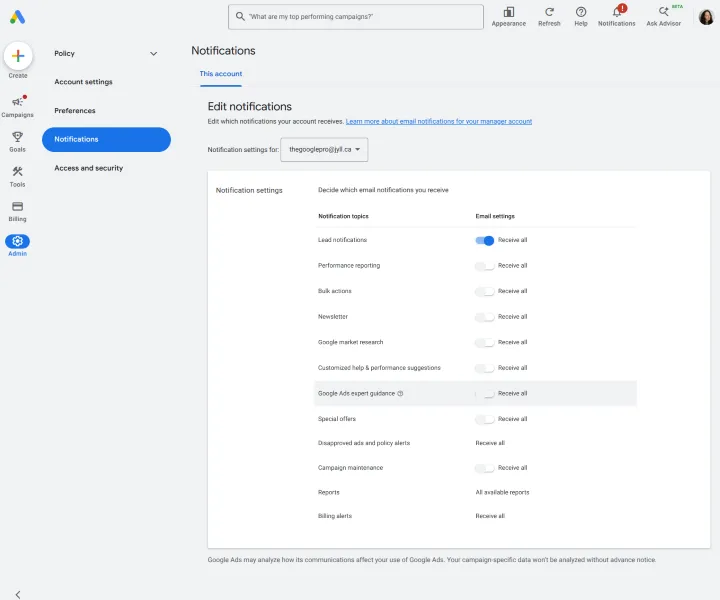
This is also important because these emails from Google sometimes contain a “one-click apply” button, where simply clicking a button in an email can enable all kinds of changes in the account. Yes, I have seen this happen to multiple clients, too. Stay safe (and keep your inbox clean) by disabling any unnecessary notifications.
🛑 Learn how to make the most of AI in your ads! Get 9 Powerful Ways to Use AI in Google & Facebook Ads
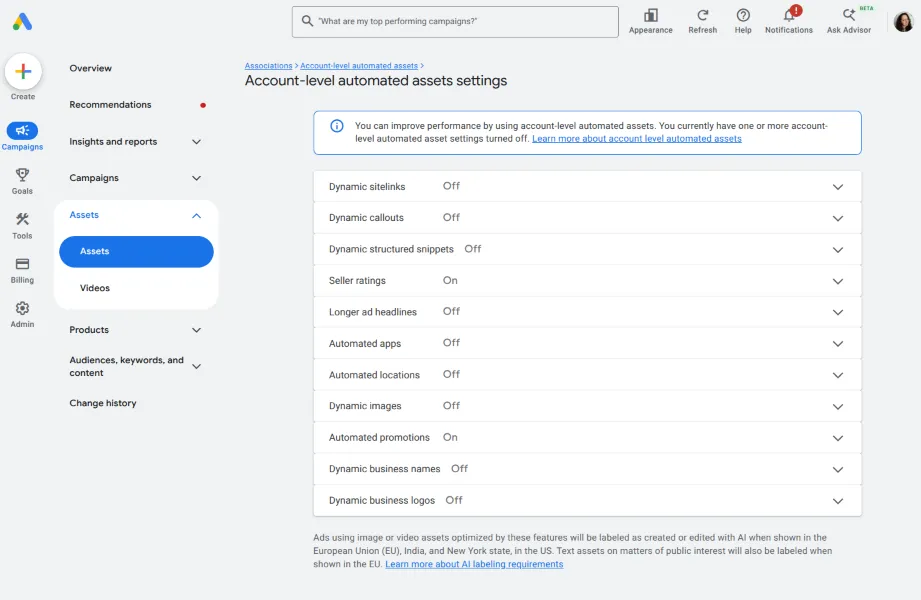
4. Account-level automated assets settings
Assets (formerly known as extensions) are optional pieces of information that can appear with your Google Ads, like sitelinks, callouts, or images. While it’s a good idea to use a variety of assets, you may not want Google Ads to automatically create these for you.
For example, I’ve seen dynamic sitelinks created for a client’s Careers page, driving paid traffic to job applications rather than what they actually wanted: customers. In another client’s account, I saw automated locations pop up in Search ads; however, the client only wanted to use their paid ads investment to drive online sales. If you’re checking your asset report and notice sitelinks, callouts, or other assets created by “Google AI,” these settings may be the culprit.
As with most of the settings highlighted in this article, account-level automated assets aren’t inherently good or bad, but they should be monitored and controlled. I’ll generally leave the “Longer ad headlines” asset setting turned on, for example. But you’ll probably want to turn a lot of them off.
To check your account-level automated assets settings, take a deep breath, then navigate to Campaigns > Assets > Assets > More > Account-level automated assets > More > Advanced settings.
5. Content suitability settings
If you use campaign types beyond Search and Shopping, you’re going to want to check on your content suitability settings. This is how Google decides what kind of ad inventory is appropriate for your business on YouTube and the Google Display Network.
I recommend choosing “Moderate inventory,” which will exclude placements with “strong profanity, dramatized violence, and sexually suggestive themes.” Most businesses probably don’t want their ads showing up alongside potentially controversial or offensive content.
If your company is especially concerned about reputation or “brand safety,” choose “Limited inventory” instead. On the other hand, if you don’t care where your ads appear and you want to purely maximize reach or efficiency, choose “Maximum inventory” (this is the default).
You can find these settings in Google Ads by going to Tools > Content suitability > Inventory type.
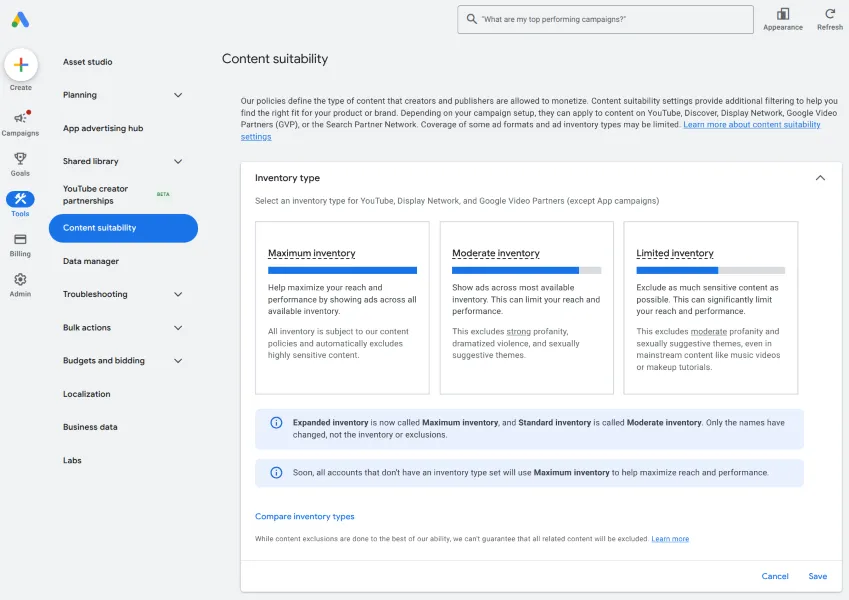
But that’s not all! Unless you’re a “Maximum inventory” kind of advertiser, you’ll probably want to scroll down to the Advanced settings.
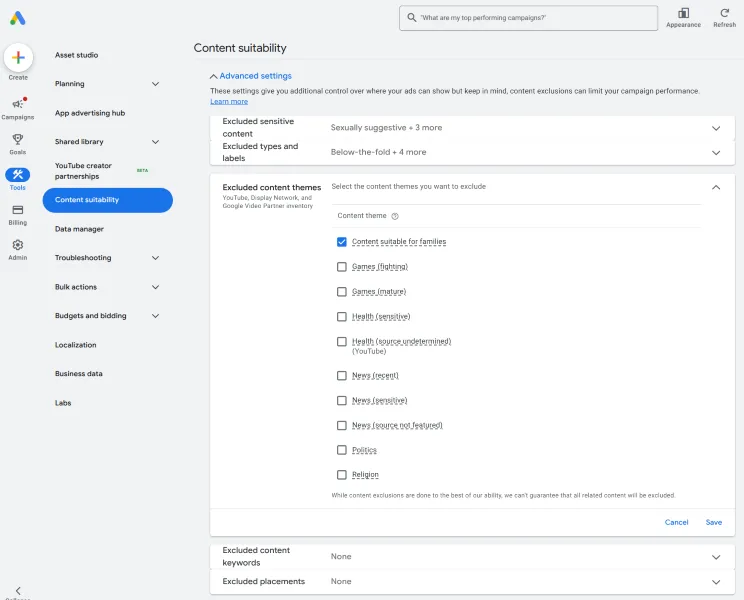
This section gives you more control over more specific types of content that you might like to exclude from your campaigns. For example, you can:
- Exclude sensitive content: For example, content that is about sensitive social issues, tragedy and conflict, or “sensational and shocking.” Think of this as going one step deeper than the Maximum / Moderate / Limited inventory control.
- Exclude content types: For example, live stream videos (who knows what could happen on a live stream?) or embedded YouTube videos (which can be embedded on any type of website).
- Exclude content labels: Just like the movies, Google labels its Display inventory, and you can exclude inventory rated “Teen” or “Mature” or even exclude all inventory that doesn’t yet have a rating.
- Exclude content themes: For example, content about potentially controversial topics like politics, religion, health, or fighting games.
- Exclude content keywords: This will exclude videos, channels, websites, and apps that “contain specific words in titles and descriptions,” but not necessarily the whole page or the whole video; do keep that limitation in mind.
- Exclude content placements: This includes placements across YouTube and the Google Display Network, so your ads won’t appear on certain websites, channels, apps, or videos.
While some of these exclusions (like placement exclusions) are available at the campaign level, applying them here will exclude them across your entire account. Note that some of these settings only apply to content on the Google Display Network, while others will also apply to Discover, Search Partners, or other placements; read all the fine print before using these exclusions.
One of my top tips before running a Video campaign is to exclude family-friendly content, so you don’t end up inadvertently getting all your views from Ms. Rachel, Bluey, and Sesame Street videos. Ms. Rachel makes me so happy… when she’s not in my placement report!
6. Billing threshold settings
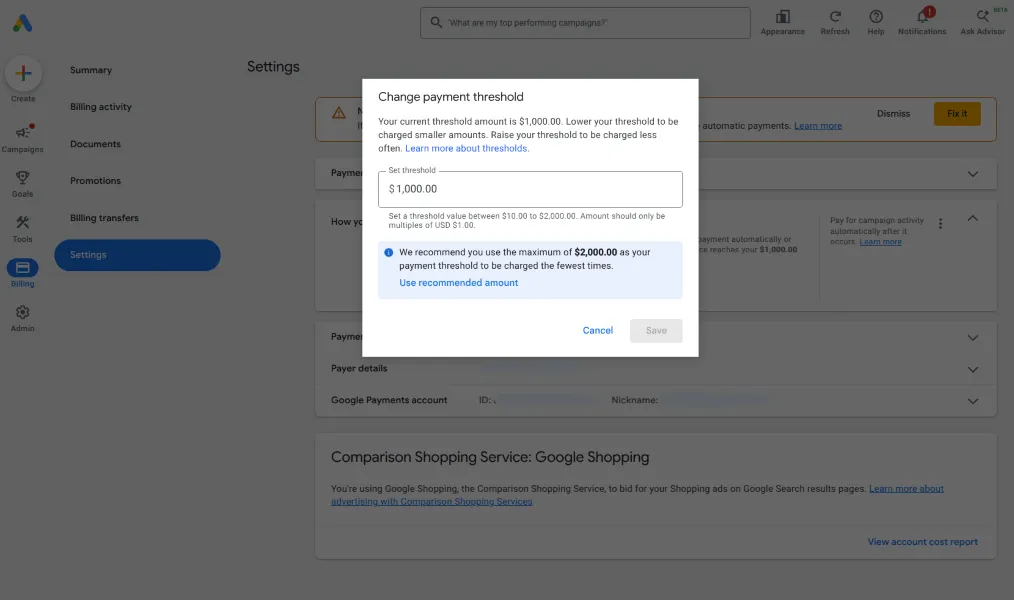
If you’re getting charged $500 a day from Google Ads, every other day, and want to see less frequent charges, you need to update your billing threshold. Different accounts will have different thresholds, and as long as you have a good history as an advertiser, you can edit yours.
In Google Ads, go to Billing > Settings > How you pay > Edit threshold. In this example from one of my clients’ accounts, their current billing threshold is $1000, but they’re eligible to double the threshold to $2000. Given that they spend about $250/day on Google Ads, they may want to see Google Ads charges on their credit card every 8 days or so, rather than every 4 days or so.
Don’t “set and forget” these Google Ads settings
Set a reminder every six months or so to ensure you’re regularly reviewing these hidden settings and making adjustments as needed.
Google’s automated features and default options may or may not be the right choice for you—and the choices you make today may not be the right choices for your campaigns in the future. Maintain control over auto-applies, communications, assets, and placement suitability so that your Google Ads campaigns stay aligned with your objectives and goals.
And if you’d like some support getting more out of Google Ads (and social media, and email, etc.), reach out. We’ll show you how our digital marketing solutions can help.
About the WordStream Blog
We've been a trusted source of data, news, and strategy for over 15 years. All of our content is written and reviewed by real people: a dedicated team of professionals with decades of combined experience in marketing and advertising for businesses of all sizes.


Add us as a preferred source on Google
Are you wasting money in Google Ads?

Meet The Author
Jyll Saskin Gales
Jyll Saskin Gales is a Google Ads Coach, and the founder of the Inside Google Ads course, podcast, and bestselling book. She advises business owners, agencies, marketers, and freelancers across industries, helping them get the best ROI from their marketing. Jyll worked at Google for 6 years and has an MBA from Harvard Business School. You can find her on LinkedIn and YouTube.